AnyDesk not connecting: causes and fixes
In short: AnyDesk usually fails to connect because of the network or a firewall, because the app is not running on the remote computer, or because of a wrong address. Below are the five basic checks from AnyDesk’s official help centre and the common messages explained.
Five checks in order
According to AnyDesk’s help centre:
- Both devices are connected to the internet.
- AnyDesk is running on the remote computer.
- You are using the correct AnyDesk address (ID or alias).
- A firewall, antivirus or proxy is not blocking AnyDesk.
- Restart AnyDesk and try again.
“Cannot connect to the AnyDesk network” or “AnyDesk is not connected to the server”
The app cannot reach AnyDesk’s servers. The help centre names the causes: the network or security settings that keep AnyDesk away from its servers. Check that other websites open, turn off VPN and proxy for a moment and see whether an antivirus or a corporate firewall is blocking AnyDesk.
Codes win32_10060, win32_11001, win32_10054
These are Windows codes, not AnyDesk ones. According to AnyDesk they usually mean a misconfigured firewall. Allow AnyDesk in the Windows firewall and in your antivirus; on a work network ask the administrator to allow it.
“AnyDesk’s window must be open on the remote computer”
The remote computer has to keep the AnyDesk window open to accept the connection. If nobody is there, you need unattended access — a separate AnyDesk setting with a password.
“The session has ended. Status: desk_rt_27”
The session closed by itself after a period of inactivity. Connect again.
“The session was denied due to the access control settings”
Your address is not on the remote side’s allowed list. It has to be added in the remote AnyDesk’s access settings.
“Your license does not allow more sessions”
The licence’s limit of simultaneous sessions has been reached. Close other sessions, including background ones, or upgrade the licence.
Linux with Wayland
If the remote computer runs Linux with Wayland, AnyDesk’s help centre suggests switching to X11.
If nothing helped
If the network is fine but AnyDesk still does not connect, try another service on the same devices — that tells you whether the problem is the network or the app. RudyDesk is handy for this: nothing needs to be installed on the other side, opening an invite link in the browser is enough. The link is single-use and valid for 15 minutes, and the connection still has to be accepted.
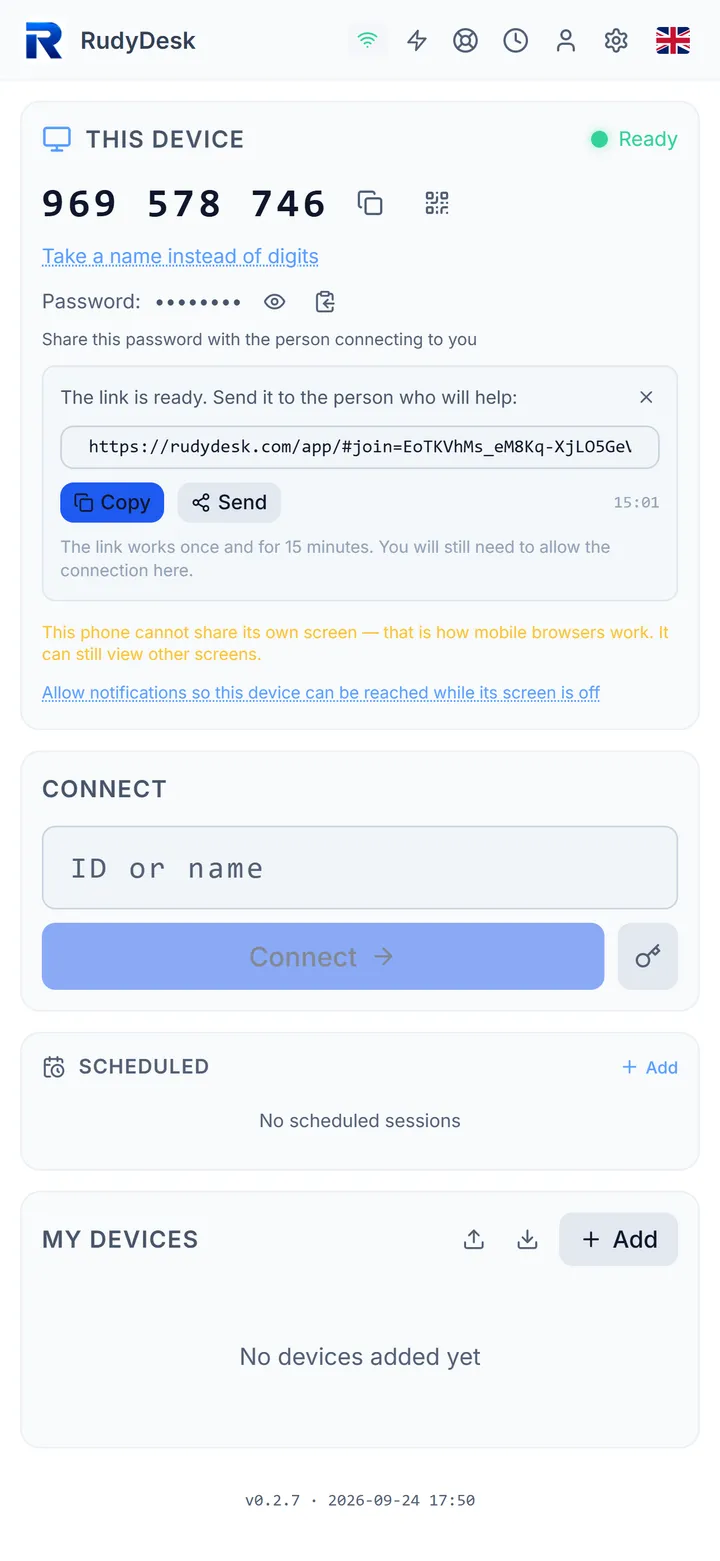
If RudyDesk does not connect either, the app has a “Why won’t it connect?” check: it tests the link to the server, a direct connection and the relay step by step and tells you what to do.
Frequently asked questions
Do I need to open ports for AnyDesk? Usually not, but the firewall and antivirus must not block the app — that is what codes win32_10060 and 11001 point to.
Why does the connection drop for no reason? AnyDesk’s help centre links session interruptions to firewall settings and network drops.
Can I test the connection without installing a second app? Yes: a RudyDesk invite link opens in the browser, nothing to install.