How to connect to a computer remotely for free
In short: to connect to a computer remotely, it needs a remote access app, and you can connect from another computer, a phone or a browser. With RudyDesk two devices are free forever — including for work, with no session length limit.
What you need
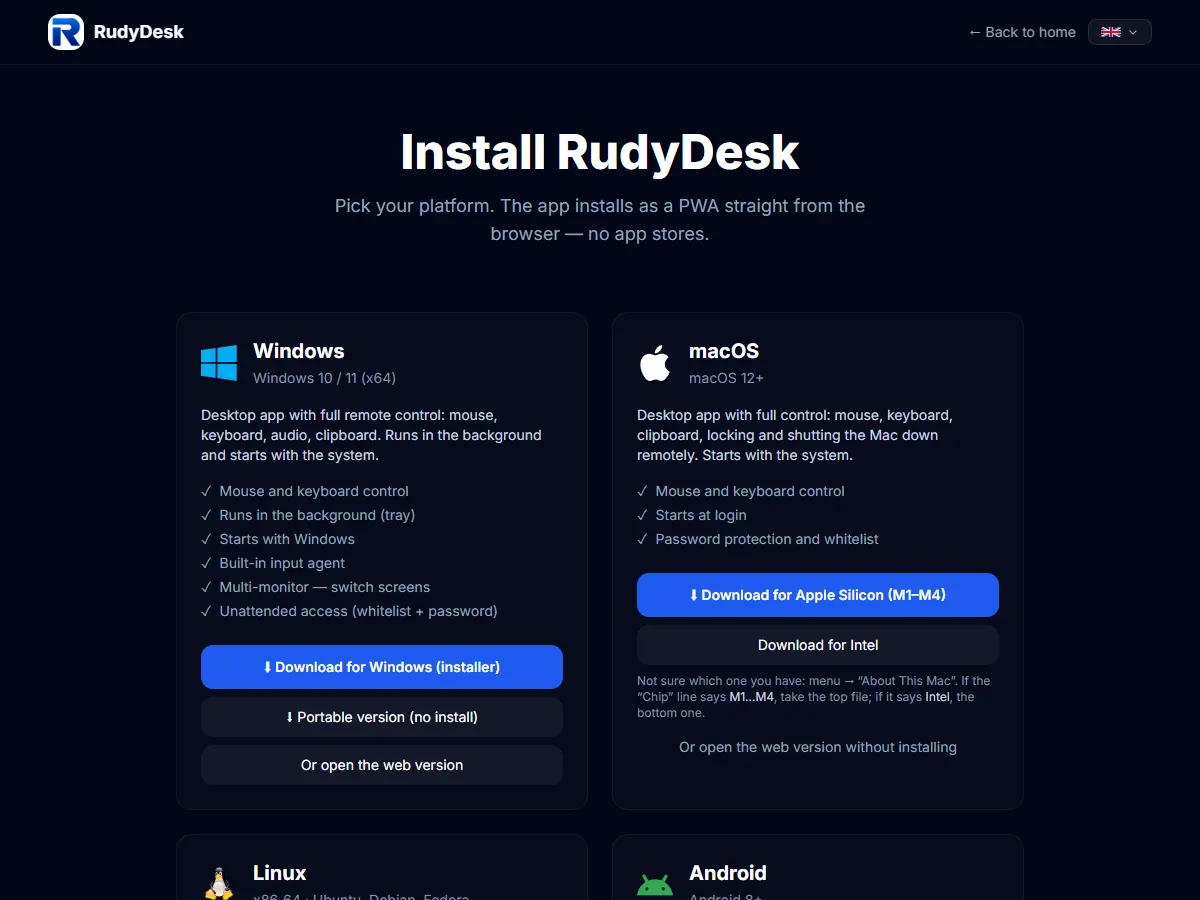
- On the computer you connect to: the RudyDesk app from rudydesk.com/download. Without it you can only view the computer: the browser does not let web pages move the mouse.
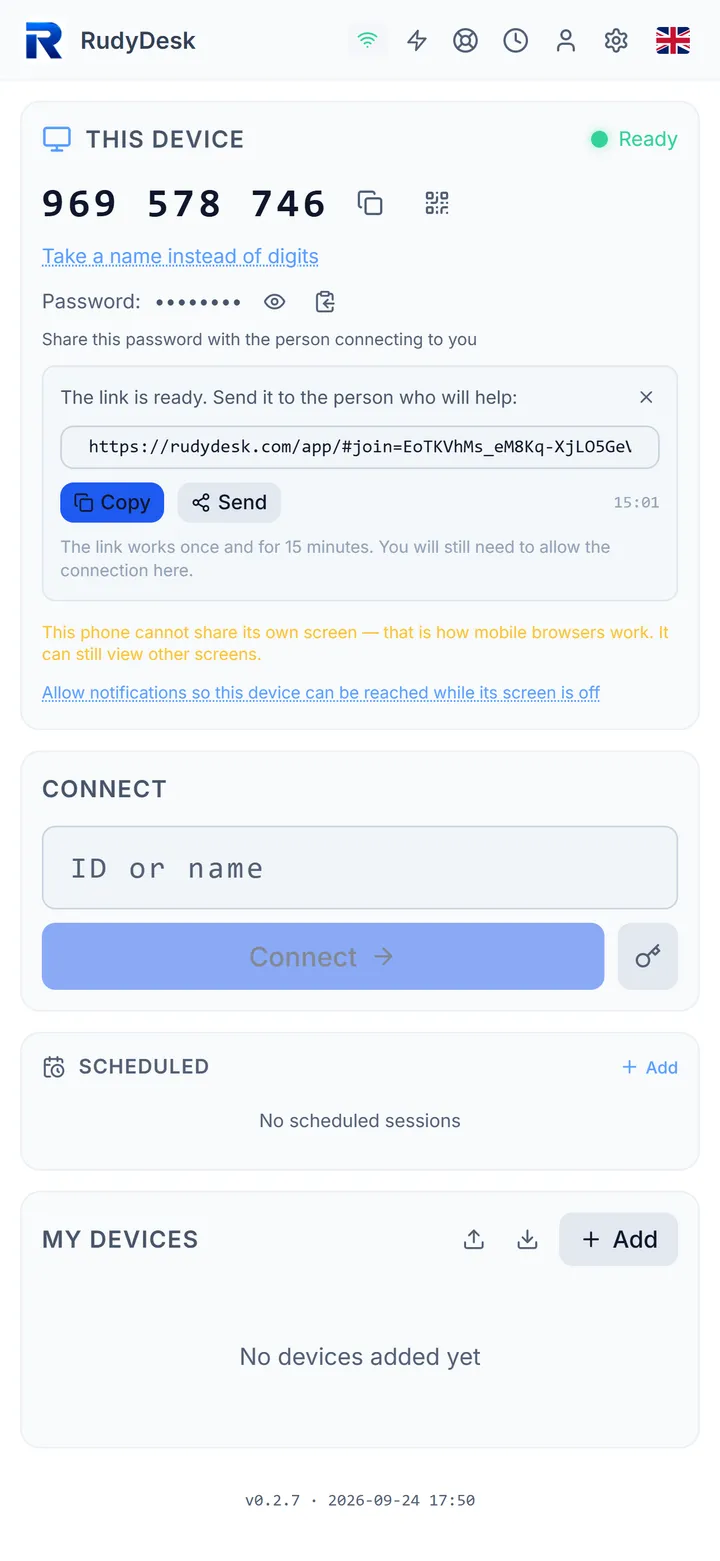
- On the device you connect from: the app, or just a browser at rudydesk.com/app.
- Internet on both sides.
Task 1: reach your own computer
- Install the app on the computer and note the device ID on the main screen.
- From another device, open the app or rudydesk.com/app and enter the ID and password.
- Confirm the connection on the computer — or, if nobody will be there, turn on access without confirmation: a permanent password. It works with the Pro plan or above.
If the computer is asleep you can wake it — see the article “Your computer fell asleep — how to wake it remotely”.
Task 2: help someone else
A link is easiest: the person presses “Invite with a link”, sends it to you, you open it in a browser, and they press Accept. The link is single-use and valid for 15 minutes. Details are in the article “How to help your parents with their computer remotely”.
Task 3: control a computer from your phone
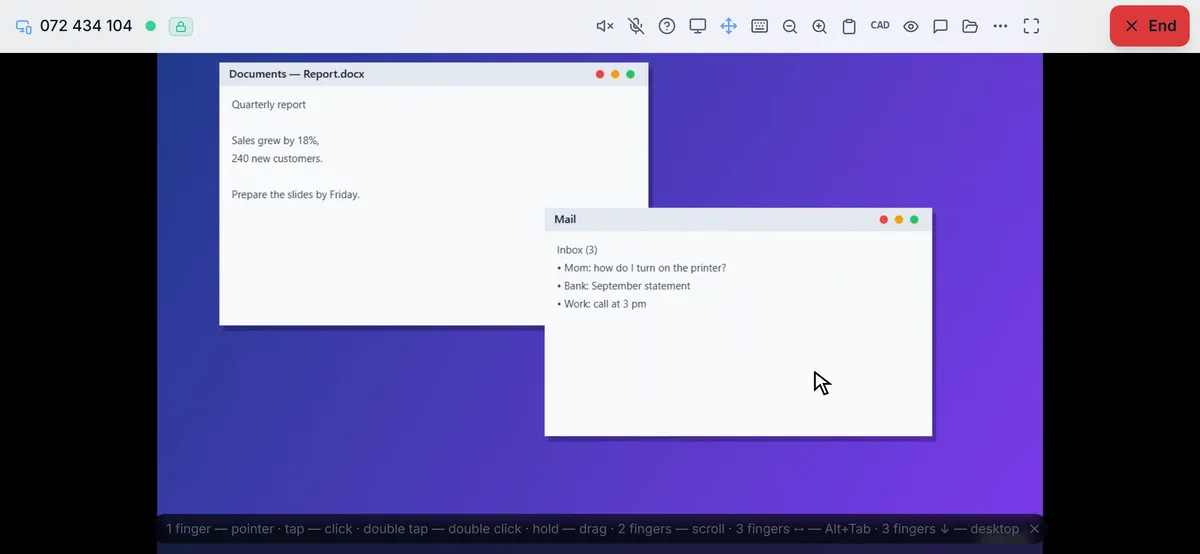
Open rudydesk.com/app in your phone’s browser — nothing to install. A tap is a click, two fingers scroll, and there is a keyboard. Details are in the article “How to control your computer from your phone”.
Is it secure
Screen, sound and files go directly between devices and are encrypted. The device password never goes to the server: sign-in is confirmed with a one-time challenge. An unknown ID is highlighted with a warning, and a journal shows who connected. Scams are covered in a separate article, “Remote access scams”.
Frequently asked questions
Is it really free? Yes: two devices forever, with no commercial-use check. You need a paid plan only for more devices.
Do I need to sign up? No. An email account only helps if you want one licence and a shared device list across all your computers.
Does it work on Mac and Linux? Yes: there are apps for Windows, macOS and Linux, and you can also connect from a browser.